GPS LEADERS
Wireless tracker
Install guide · wireless tracker · no wiring
Wireless Tracker Install Guide
No wires. Same spot, every vehicle.
The wireless tracker runs on its own battery, so there is nothing to wire. Turn it on, mount it with the lights facing up, and confirm it from the dealer app.
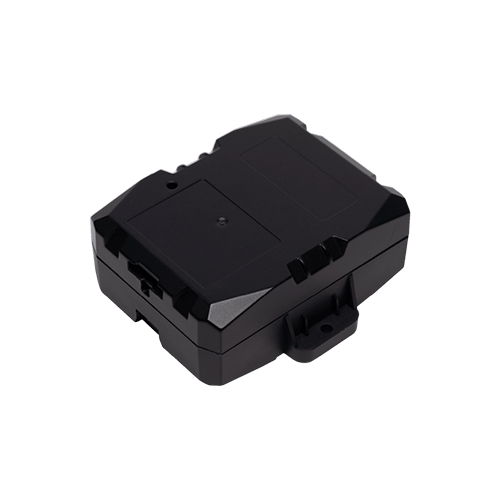
Power on and off
- Power onPress and hold the power button. Both lights go solid for about a second. To check it is on, tap the button: both lights stay solid while you press.
- Careful with the holdHolding the button for about 3 seconds starts the power-off sequence.
- Power offPress and hold. Both lights flash quickly together for about 5 seconds, go solid for about 1.5 seconds, then the unit turns off. To check, tap the button: no lights.
Mount it
- Under the dashSecure it with a zip tie, Velcro or double-sided tape (not included).
- Lights facing upFlat, with no metal above it, or it cannot see the satellites. Keep it away from direct heat.
Test the install
- Open the GPS Leaders dealer appTap Start New Installation.
- Follow the stepsConfirm the unit and test it on the vehicle.
The status lights
| Light | What it means |
|---|---|
| Solid green + solid blue | Good connection: cellular (green) and GPS (blue) locked |
| Flashing green + flashing blue | Still searching. Wait, or reposition the unit |
| On / Off | Hold about 3 s to turn on; hold about 5 s to turn off |
Or call a GPS Expert(855) 432-6423
Good to know. Battery life depends on how often the unit reports. Steps may change with new hardware; the current guide is always at gpsleaders.com.